QR code ordering for restaurants
Mobile ordering for restaurants, straight from the table QR code
Guests scan the QR code on their table and order from the menu on their own phones. Orders reach Tenin Live in the kitchen with the table number. Mobile ordering is one of the skills of your Tenin AI clerk, so the same clerk answers questions and recommends dishes in the guest’s language.
How guests use it
Seated guests order from their phones
01
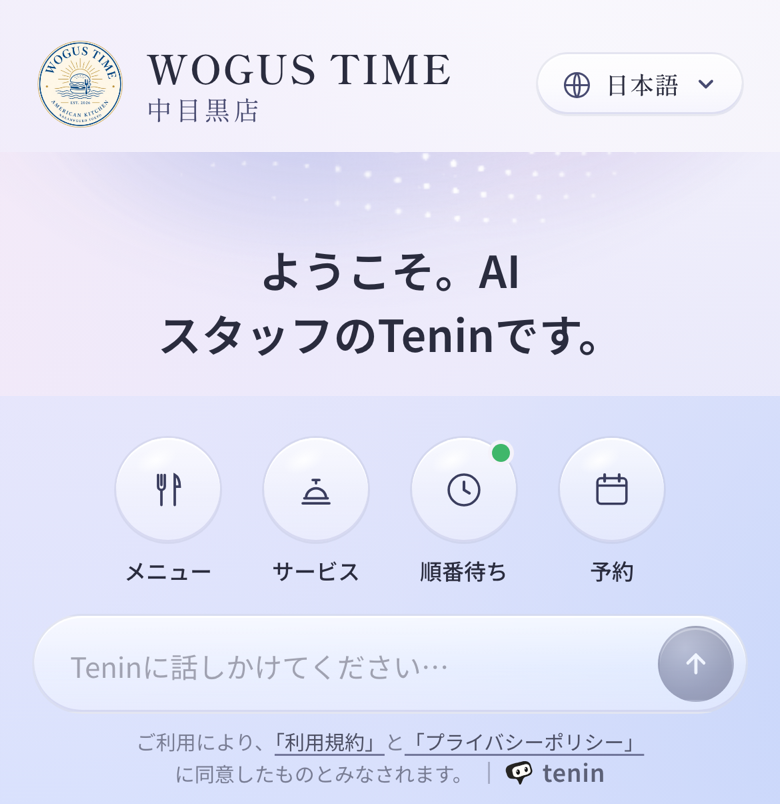
Scan the table QR code
Each table has its own QR code, so the table number is detected automatically. No app or sign-up needed.
02
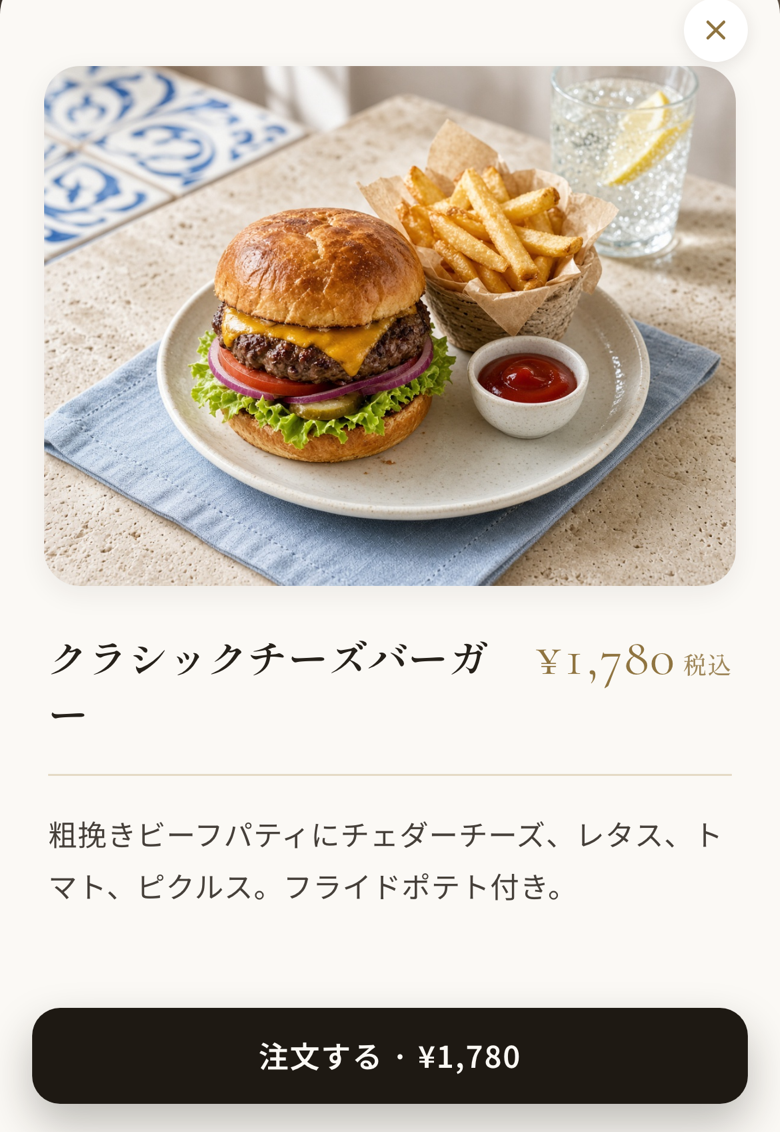
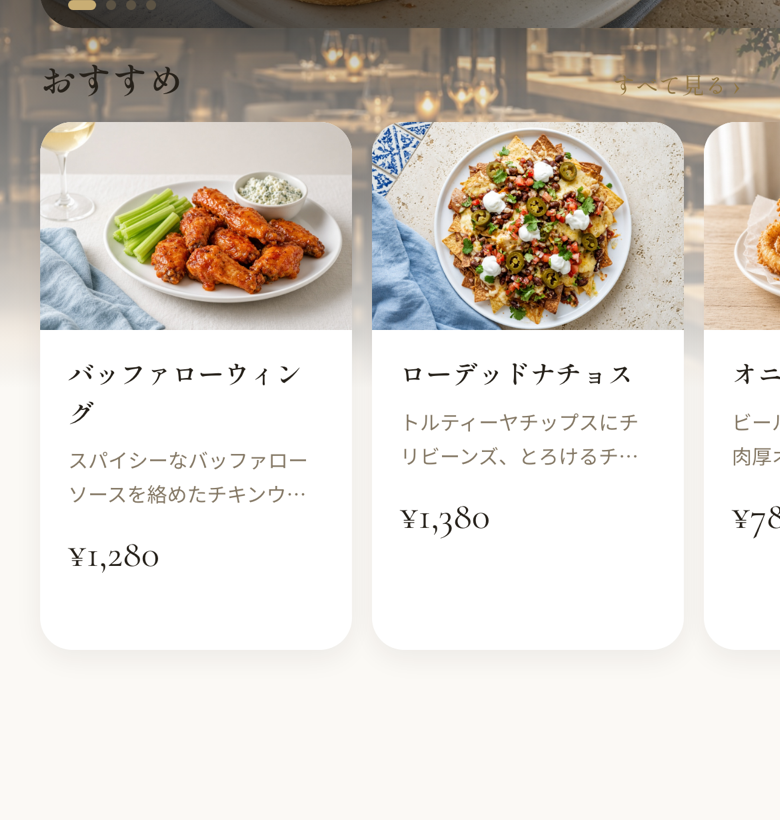
Choose from a menu with photos
The menu appears in the language of the guest’s phone: Japanese, English, Simplified Chinese, Traditional Chinese or Korean. If they want to check ingredients or allergens, they can ask the AI clerk right there.
03
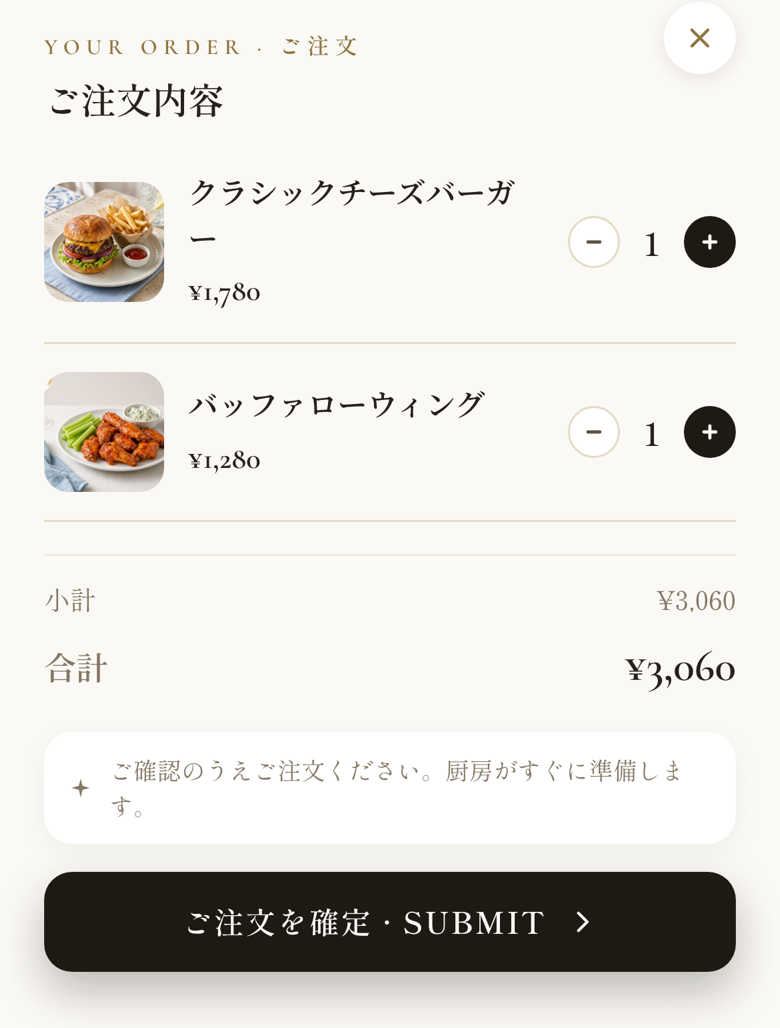
Add to cart and order
Everyone at the table can order from their own phone, and add more from the menu at any time.
04
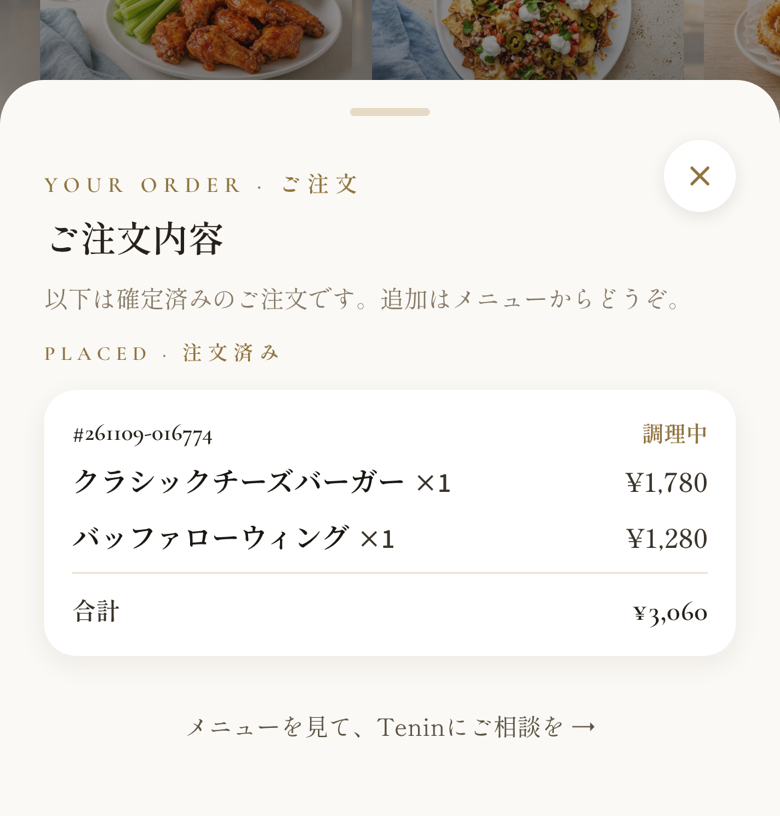
Follow the progress
Guests can see whether each order is received, being prepared or ready.
Screens shown are from a demo store.
What your staff see
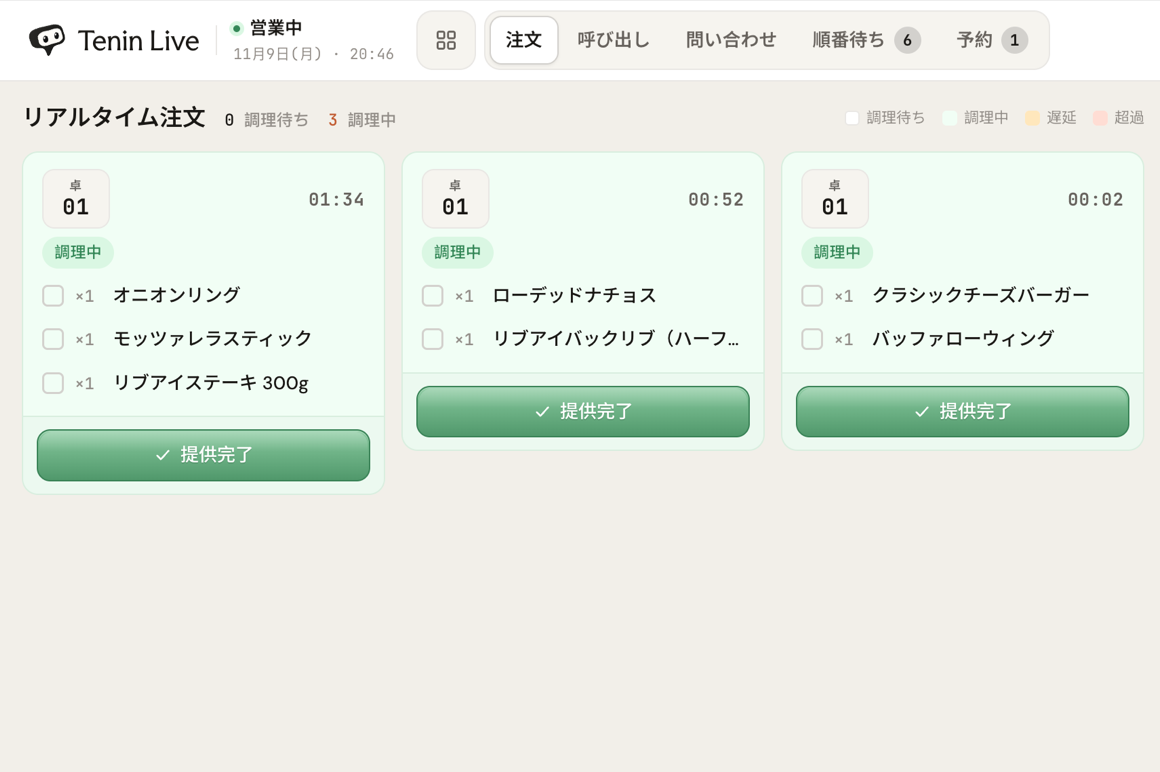
Orders reach Tenin Live in the kitchen, with the table number
- A sound plays for new orders, which appear on the kitchen screen with the table number.
- Move orders from received to preparing to done in one tap, and check off each dish.
- Mark items as sold out in one tap from a list by category. Sold-out items can no longer be ordered.
- Edit the menu in Tenin Workspace; guests only see it after you publish. Publishing creates each language version automatically, and you can edit translations anytime.
- Search by your store name to import a menu already published online, including on restaurant guide sites. You review it before publishing.
- If you set a business calendar, orders are not accepted outside opening hours.
More than a system
Questions about dishes go to the same AI clerk, right at the table
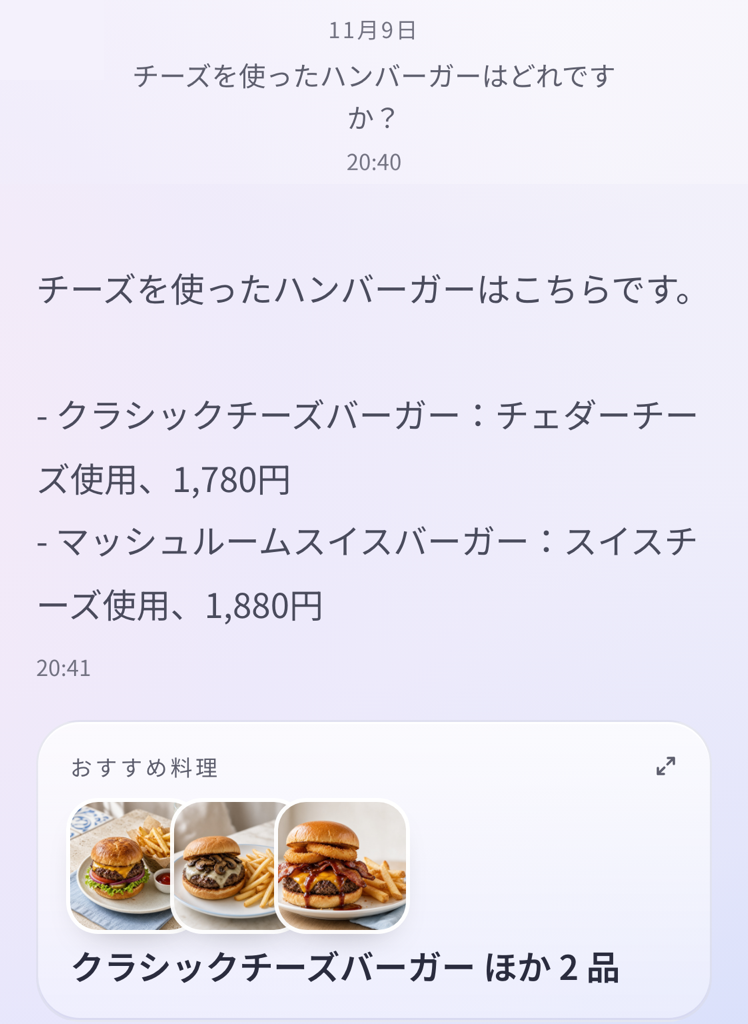
Mobile ordering saves time, but guests still ask “Is this spicy?” or “Does it contain egg?” With Tenin, an AI clerk that knows your menu answers them.
- Recommendations and dish details
- Guests share their budget or tastes, and the AI clerk recommends dishes from your menu.
- Allergen checks
- Answers are based on the allergen information you register. If it has not been registered, the AI clerk never says a dish is free of an allergen.
- In the guest’s language
- The menu appears in five languages, and the AI clerk answers questions about dishes in the language the guest types.
- Table service requests
- Requests for water, chopsticks or the check reach staff through the Table service skill.
Getting started
How to get started
- 01
Sign up for free and create your store from a Google search.
- 02
Add and publish your menu in Tenin Workspace. You can also search by your store name to import a menu already online.
- 03
Add your tables, then print and place a QR code on each one.
- 04
Turn on “Allow customers to order” in Tenin Workspace.
- 05
Open Tenin Live on the kitchen tablet and connect it with the pairing code.
Key features
- A QR code per table, table number detected automatically
- No app or sign-up
- Menu with photos and today’s picks
- Menu in five languages, translated on publish and editable
- Everyone at the table orders on their own phone, with add-on orders
- Order progress shown on the guest’s screen
- Tenin Live kitchen screen, dish-by-dish check-off and sound alerts
- Sold-out settings in one tap
- Import of menus already online
- Orders paused automatically outside opening hours
Frequently asked questions
Do we need dedicated hardware?
No. Guests order on their own phones, and your staff use Tenin Live in a browser on a tablet or other device you already have.
Does it integrate with our POS?
POS integration is not currently supported. Guests pay at the register as usual.
Can guests pay by phone?
Paying by phone is not supported. Guests can request the check through Table service.
Is it hard to set up the menu?
You can add dishes one by one in Tenin Workspace, or search by your store name to import a menu already published online. After you review and publish it, each language version is created automatically. Importing from photos or PDFs of a paper menu is not supported.
Do we need to prepare menus in other languages?
No. Publishing your menu creates English, Simplified Chinese, Traditional Chinese and Korean versions automatically, and you can edit the translations anytime.
Can orders be cancelled after they are placed?
Guests cannot cancel orders from their screen; ask them to speak to staff. Orders that have not been accepted yet can be declined in Tenin Live.
How much does it cost?
The Free plan includes every skill, including mobile ordering. Plans differ in the number of AI clerk conversations per month (30 per month on the Free plan) and the number of brands and stores you can run. No credit card is required.
Let an AI clerk take orders at your tables
Publish your menu and place QR codes on your tables to get started. Start on the Free plan.